One grocery list, two stores
You need three cans of beans for chili. There are two on the shelf. Here’s how to leave the first store with a list that still tells you exactly what to buy.
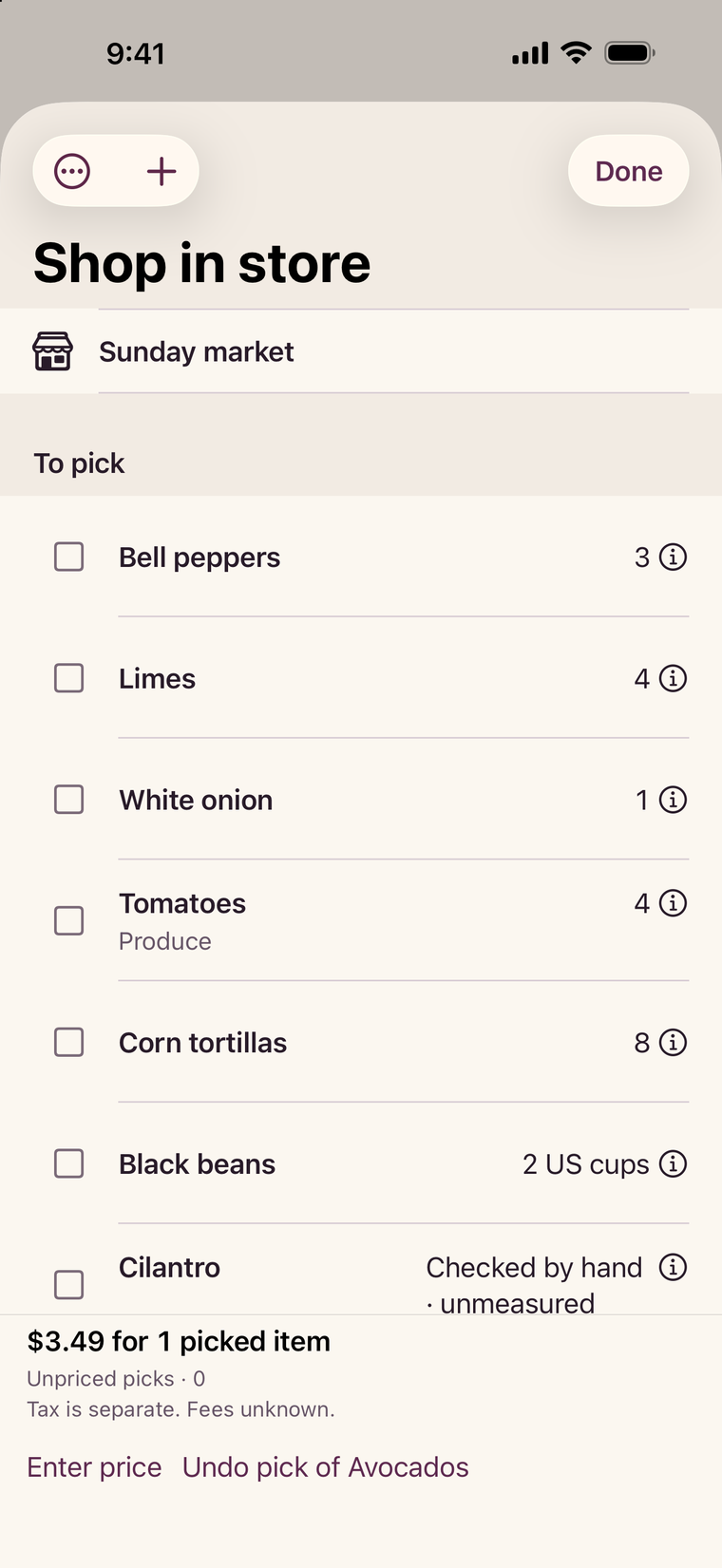
See the worked example
Keep the last can on the list
Start with the quantity you need
In Shop, add beans to your grocery list with a count of three cans. Open Shop in store when you’re ready. You can use the list offline.
Record the two you found
Tap the bean row to open its details. Choose Pick part, enter 2 and select Save picked amount. The checkmark is for picking the full outstanding amount. If you checked it by mistake, use the item’s Undo action.
Take what’s missing to the next store
Open Next store, enter the second store’s name and review the outstanding items there. Choose Start this stop. For beans with no store restriction, you now have one can left to find.
Send a short list if someone else is stopping
From List options, open Preview list copy. Select the outstanding items you want to send and choose Preview message. If the preview asks for one can of beans, it’s ready to share. The recipient can read the copy without the app. Record the can on your own list when it arrives.
What should still be on the list?
You also picked up your tortillas and haven’t reached the limes. Here’s what the next shopper needs to know.
- 3 cans of beans
- In the basket 2 cans
- Still to pick 1 can
- 1 pack of tortillas
- In the basket 1 pack
- Still to pick None
- 2 limes
- In the basket None
- Still to pick 2 limes
A picked quantity and a price are separate facts. If you haven’t entered the tortilla price, the priced subtotal doesn’t tell you the cost of the whole basket.
Already have a list in a message?
Bring it into Shop
Copy the grocery lines from your message. In Shop, choose Add several items, then Paste list and Review list. If your list says “2 apples” twice, decide whether you meant two apples or four before you save it.